

 Access Path Identification - Part IV


SQL*PLUS Autotrace and the SQL Trace command are tools that we can use to display access path information. In addition, SQL Trace also provides additional statistical information that we can use to evaluate a given statement's performance.
You can easily tell how popular these tools are by doing a Google search on them. You'll find hundreds of different articles, blogs and whitepapers that cover Autotrace and SQL Trace. Instead of me just regurgitating information that is already provided by a myriad of other sources, we'll keep this blog short. I will point you to a few of my favorite "go to" websites for more information.
SQL*PLUS AUTOTRACE
The SQL*PLUS
AUTOTRACE command can be used to create a report of the execution path used
by a particular SQL statement. Statement execution statistics can also be generated
if desired. This is my favorite explain tool because it's a quick and easy way
to display the access path the query is taking. The following parameters are
used as input to Autotrace to generate different report output:
- SET AUTOTRACE OFF- No AUTOTRACE output is generated. This is the default value.
- SET AUTOTRACE ON EXPLAIN - The AUTOTRACE output displays the optimizer access path.
- SET AUTOTRACE ON STATISTICS - The AUTOTRACE output displays SQL statement execution statistics.
- SET AUTOTRACE ON - The output will display the optimizer access path and the SQL statement execution statistics.
- SET AUTOTRACE TRACEONLY - Will display the same output as SET AUTORACE ON but will suppress the display of the query output.
Take a look at this output file I generated in SQL*PLUS. It displays the output of all of the different variations of the Autotrace command. Tom Kyte's Ask Tom website provides an abundance of information on setting up and running Autotrace. Here's Tom's brief description of the performance statistics generated by Autotrace.
Bind Peeking
and Autotrace
In addition, you will have to watch out for those pesky bind variables. I discussed
the impact bind variables had on generating different access paths at explain
time versus run time in a previous
blog.
Here's Something
I didn't Know
You will also need to be aware that SQL*PLUS and Autotrace will assume that
all bind variables are strings - regardless of how you define them. Tom
Kyte's blog (do a search on this value "to_number(:bv)" twice
when the page is displayed) to see Tom's comments on this.
I agree with Tom's recommendation that if you want to attempt to get the access path displayed by Autotrace to match the access path taken during execution, your best bet is to replace the bind variables with hard-coded values. The issue is the values you choose to replace the bind variables with may not match the values actually used in production. So, once again, your access paths may differ.
Some Interesting
Information from Jonathan Lewis on Autotrace
Jonathan Lewis's blog
entry on Autotrace provides some interesting hints and tips on how to better
format Autotrace output.
The first comment in the blog, by one of my favorite bloggers - Howard Rogers, asks Jonathan to provide evidence that Autotrace does only an explain when using the SET AUTOTRACE TRACEONLY EXPLAIN command. Please follow the link that Jonathan provides to show his explanation. You'll see that, once again, you need to be careful when using Autotrace to display access paths.
SQL TRACE
If you have been reading my previous blogs on access paths, you'll know that
I stated that the data in V$SQL_PLAN and the output provided by a SQL Trace
command will show the actual access path a statement used during execution.
SQL Trace is used to create a raw trace file that contains SQL performance information for all statements that were executed while the trace was active. The raw trace output can be found in the database's UDUMP directory. You use the TKPROF utility that resides in the $ORACLE_HOME/rdbms/admin directory to read the raw trace data and format it for easier readability.
There is an absolute myriad of ways to activate tracing. The range of tracing options ranges the spectrum, from tracing every statement that executes in the database to tracing individual SQL statements. The two primary methods to activate a trace are SQL statements to alter the session setting to activate tracing ("alter session set sql_trace = true;") or setting the 10046 event parameter.
Instead of me regurgitating
information that is already on the web, here's a link to an extremely
thorough discussion on the various ways to activate SQL tracing.
It is from another one of my favorite bloggers, Pete Finnigan. I think that after reading Pete's document, you'll agree that he has done a great job at showing us how to activate tracing.
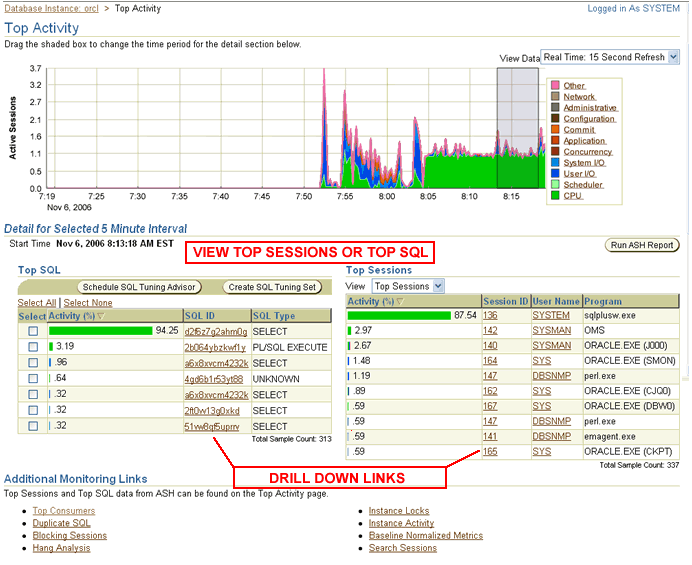
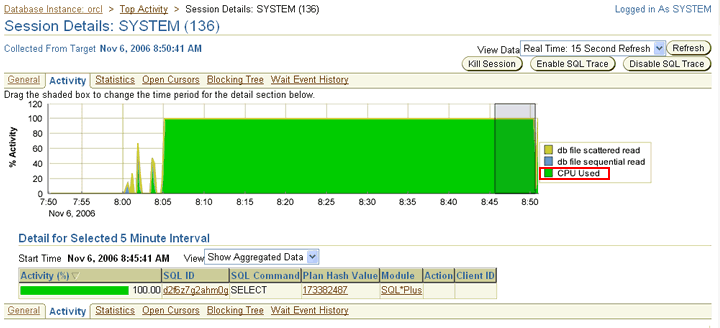
We learned in previous blogs how to identify poorly performing queries using the various tools available in 10G Grid Control. You can also activate a trace from the Grid Control Panels. In my blog titled "System Triage Part III - Finding the Top Resource Consumers", I show you how to drill down from the Top Activity Page to the Session Details page. If you notice, the Session Details page has a link to activate a SQL trace.
I'm also a big
fan of Mark Rittman. Mark shows us a couple
of additional tricks on activating a SQL trace and how to read its output.
We now know that we have numerous alternatives to choose from to activate tracing. Here are the ones I most commonly use:
- If I can quickly
identify the statement, or statements, causing the problem (discussed in previous
blogs in this series), I will cut the statement out and attempt to run it
in the production environment. This is easily done if it is a SELECT statement.
I'll try to mimic the execution environment as closely as I can in production.
Here's an example of a PL/SQL
block I have often used to trace a SQL statement that I think may be affected
by bind peeking. I'll set my session to trace using the "alter session
set sql_trace=true" command, run the query, format the dump file and
review the output.
- If I identify
the program or user having the problem, I'll use one of the methods described
by Mark Rittman and Pete Finnigan to trace another user's session.
-
If I can narrow
it down to a specific user or program, I'll activate a logon trigger.
Login trigger for schema login. Replace SCHEMA_OWNER with user name.
CREATE OR REPLACE TRIGGER SYS.LOGINTRIGGER AFTER
LOGON ON SCHEMA_OWNER.SCHEMA BEGIN
execute immediate 'alter session set sql_trace = true';
END;
Login trigger to trace program. Replace "name of program".
CREATE OR REPLACE TRIGGER SYS.TRC_PKREVCSORT AFTER
LOGON ON DATABASE DECLARE
progname v$session.program%type;
BEGIN
select max(program) into progname from v$session where audsid = userenv('sessionid');
if (progname = 'name of program') then
execute immediate 'alter session set sql_trace = true';
end if;
END;
These two logon triggers were provided to me by Ron Berner. Ron states "you have to match the program name exactly. Selecting from v$session and pulling the whole value from the column PROGRAM. If the program name is "/opt/oracle/programs/ron.exe" you have to include the full path in the name."
Tom Kyte's Ask Tom website has a whole host of different variations of the above two triggers. You can pop over to Tom's website to learn what the different options are and the benefits they provide when activating traces using logon triggers.
Let's take a quick look at a trace file I generated from the very simple SQL statement I have been using as an example. The intent of this discussion is to use the formatted trace output file to compare the access path that Oracle predicts the statement will take and compare it to the actual access path taken during statement execution. Before we do, here are the commands I executed in SQL*PLUS to generate the trace file:
- alter session set timed_statistics = true
- alter session set max_dump_file_size = unlimited
- alter session set tracefile_identifier = 'test_event_tracing'
- alter session
set events '10046 trace name context forever, level 12'
Could have used the "alter session set sql_trace=true" command.
I then executed this single statement:
select a.employee_id, a.last_name, b.department_id,
b.department_name,c.street_address, c.postal_code,
c.city, c.state_province
from hr.employees a,
hr.departments b,
hr.locations c
where a.department_id=b.department_id
and b.location_id=c.location_id
and a.employee_id = 174
order by a.last_name
/
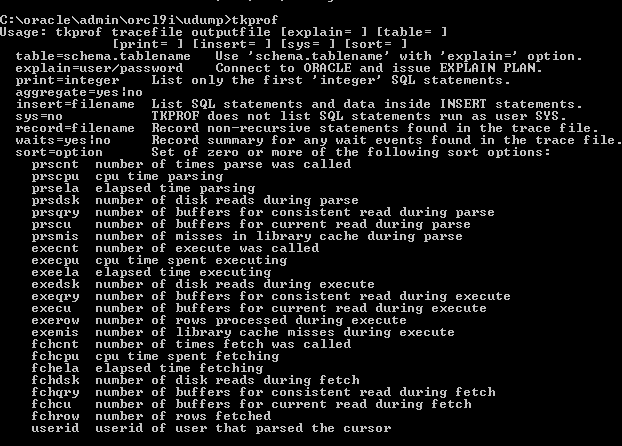
The "set tracefile_identifier" allows us to easily find the raw trace file in our database's UDUMP directory. Once we find the file, we can run the TKPROF command to format the output. Executing the TKPROF command without any options lists the different options that are available. Here's the command I issued to format the trace file. The "explain=" option asks TKPROF to display the predictive access path while "SYS=no" prevents TKPROF from displaying statements executed by SYS.
If we take a look at the output, you'll see two access paths displayed. The access path under the title "Execution Plan" is the one the optimizer thinks the statement will take, while the access path displayed under the title "Row Source" Operation" shows the access path the statement actually used during execution.
You'll notice that in my example, the predicted and actual access paths are the same. Here's a trace output file that shows the access path changing during run time.
The intent of this series of blogs is to show you how to display access paths and to determine which access path the statement is taking during execution. Along the way, we learned how bind variables and SQL*PLUS/Autotrace can cause the access path generated by the explain to not match the access path taken during execution.
What's Next
We'll take a look at 9I Scratchpad and 10G Utilities that display access path
information.




In your next blog can you talk about "Oracle outline editor", available in 9i OEM?
I would like to edit outlines in 10g, and am not sure this tool will work since it is 9i ( does it know all the new hints and access paths? ). Is there a better tool?
Replies to this comment