
 Configuring 10G OEM Grid Control Maintenance Windows


In the last blog of this series, we’ll complete our discussion on 10G Grid Control R2 optimizer statistics administration by learning how to schedule optimizer statistics gathering jobs manually.
Let's begin by
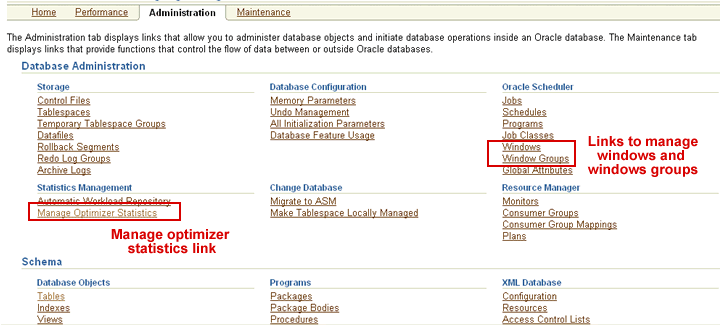
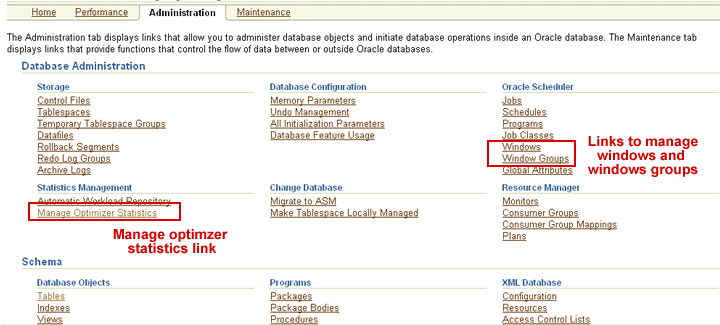
activating 10G Grid Control R2 and navigating to the Manage Optimizer Statistics Home
page. We accomplish that by selecting the 'Manage Optimizer Statistics' link
displayed on the middle, left hand side of 10G
Grid Control R2's Database Administration Home page. 10G Grid Control R2 responds by displaying
the Manage
Optimizer Statistics Home page.
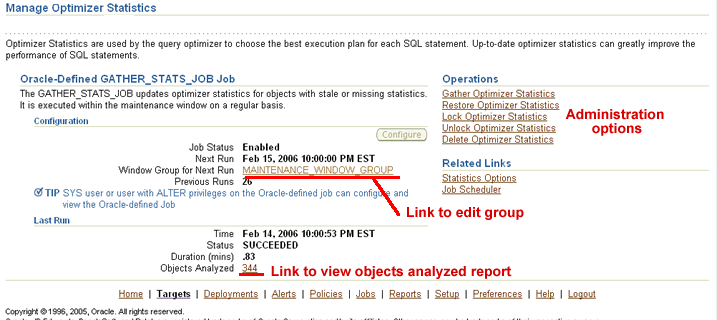
Manage Optimizer Statistics Home Page
This is the panel that provides all of the information and links we need to
administer optimizer statistics for our Oracle 10G databases. The information
on this panel tells us:
- If the database's automatic statistics gathering job is enabled
- When the statistics gathering job is scheduled to run next
- The total number of previous runs
- The date of the last run
- If the last run was successful
- Elapsed time
- The number of objects it analyzed
If you look closely
at the number displayed in the Objects Analyzed display line (in this case 344),
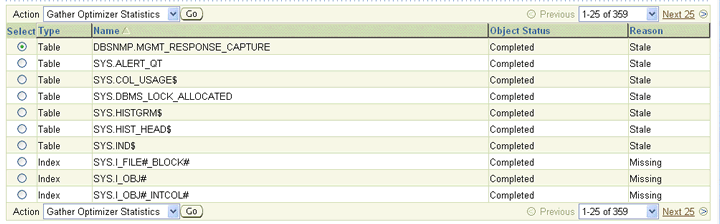
you'll notice that it is also a link. Clicking on the link will tell Oracle
to display the Objects
Analyzed report which lists all of the objects that have been analyzed in
the last run. The report also provides the reason why each object was analyzed
(stale or missing statistics). You can use this report as well as the information
provided by the LAST_ANALYZED column in DBA_TABLES and DBA_INDEXES to determine
if Oracle's automatic statistics gathering job is analyzing your tables as often
as you would like. We'll discuss this topic in-depth in the next blog.
The Optimizer
Statistics Home page provides links that allow administrators to:
- Adjust automatic maintenance window start and duration times
- Edit the parameter defaults for optimizer statistics tasks. The defaults affect both automatic and manually scheduled statistics gathering jobs
- Schedule manual statistics gathering jobs
- Restore statistics to a previous time in the past. VERY helpful if you have access paths that have changed
- Lock and unlock optimizer statistics. To learn more about why you would want to lock statistics for a set of database objects, please refer to my blog titled Oracle 10G R2 New Features Part 3
- Delete optimizer statistics
- Review statistics gathering jobs already scheduled
Application
Job Scheduling and Maintenance Windows
One of the challenges that DBAs face is that every application we work with
is different. For many of us (include me in this group), the opportunity to
work with many different applications is one of the reasons we became database
administrators.
Each application has its own unique processing flows. As a result, you often need to alter a database's default maintenance window to ensure that Oracle's routine maintenance tasks don't compete with application programs for finite system resources. In other words, you don't want Oracle running the automatic Segment Advisor at the same time your heavy batch processing programs are running. The only way to prevent these conflicts from occurring is to adjust the times on the weekday and weekend maintenance windows and throttle the amount of resources they use.
We know that 10G will schedule Segment Advisor and statistics gathering jobs to run during the maintenance windows. I'm currently reviewing the Oracle documentation to determine what other routine maintenance tasks are run during the maintenance windows. Its important for us to know all of the routine maintenance tasks Oracle runs during those times.
Managing Maintenance
Windows and Windows Groups
Oracle provides the 'Maintenance_Window_Group' navigation link on the Manage
Optimizer Statistics Home page to allow administrators to configure the
settings for the GATHER_STATS_JOB that is automatically run on objects with
outdated or missing statistics.
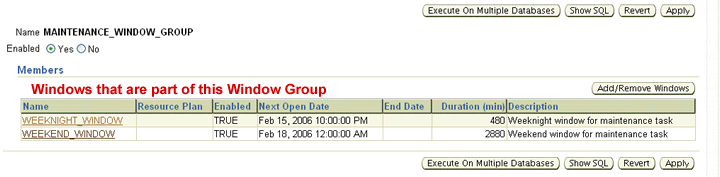
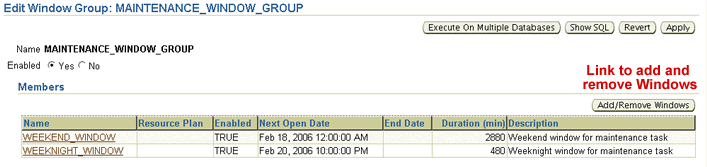
When I click on the 'Maintenance_Window_Group' navigation link, 10G Grid Control responds by displaying the Edit Window Group: Maintenance_Window_Group panel. This panel allows administrators to:
- Enable and disable the Maintenance Window Group
- Edit individual Maintenance Windows
- Add Windows to the Maintenance Window Group
- Remove Windows from the Maintenance Window Group
- Apply this Maintenance Window Group to multiple databases
It's pretty easy to remove a Maintenance Window from Maintenance Window Group. But in order to add a new Window, you have to create it first. For example, our application may have different batch processing job streams for each day of the week. In that case, it may be beneficial for us to create a different Maintenance Window for each day. You also may want to have a separate Maintenance Window for Saturday.
The majority of applications I have worked with in the past usually had a pretty standard processing schedule for each day of the workweek. But as we discussed previously, each application is different and you may want to tailor the Maintenance_Window_Group to ensure that the database's routine maintenance tasks do not conflict with application programs.
In order to create a Maintenance Window, I need to go back to of 10G Grid Control R2's Database Administration Home page. On the upper, right hand side of the page, you'll see a column heading titled 'Oracle Scheduler'. In that column, there are two navigation links titled 'Windows' and 'Window Groups'. The links point to panels that allow us to administer Windows and Window Groups.
Before we continue, some clarification is in order. There are two ways to navigate to the Windows and Windows Group administration panels that will allow us to administer our Maintenance Windows and Maintenance Window Group. We can click on the the 'Maintenance_Window_Group' navigation link on the Manage Optimizer Statistics Home page as we learned how to do previously in this blog (about 3 paragraphs up) or I can go back to the 10G Grid Control R2's Database Administration Home page and click on the 'Windows' and 'Windows Groups' links.
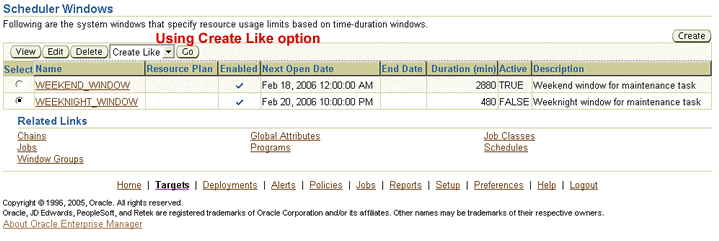
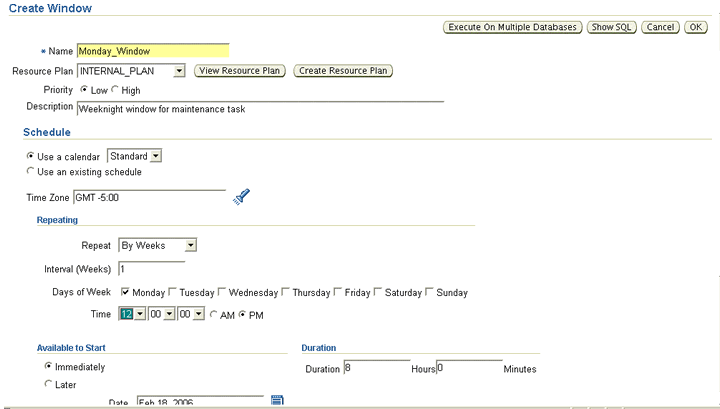
But there is only one way to navigate to the panel that allows me to create a new Window that I can add to a Window Group. I have to go back to the 10G Grid Control R2's Database Administration Home page and select the 'Windows' navigation link. When I do this, 10G Grid Control R2 responds by displaying the Scheduler Windows page. This panel allows me to edit, alter and delete Windows. I'll create a new Window by selecting the 'Weeknight Window' radio button and then selecting the 'Create Like" navigation button. 10G Grid Control R2 responds by displaying the Create Window administration panel. I chose the following options for the new Window:
- The name of our Window will be Monday_Window
- The new Window will use the INTERNAL_PLAN resource plan. Resource plans allow administrators to throttle the amount of CPU resources used. To learn more about resource plans, please refer to Kimberly Floss's article titled Database Resource Manager. I didn't need to choose a resource plan to control CPU resources. We'll learn in an upcoming blog how we can control the level of CPU utilization our statistics gathering jobs consume by adjusting the number of parallel processes they create.
- I chose the default low priority. A high priority Window takes precedence over a low priority Window if the times of the two Windows overlap. If our new Window overlaps another Window that has a high priority, the high priority Window's configuration will take precedence.
- I configured the Monday_Window to be a weekly Window that repeats every week. The day for this Window to be active is every Monday starting at 12:00 midnight. The Window's duration is 8 hours.
When I select the 'OK' navigation button to continue, Oracle takes me back to the calling panel. The Scheduler Windows page shows the new window I have just created. As we learned previously, I can edit our Maintenance Window Group by navigating either to 10G Grid Control R2's Database Administration Home page and clicking on the 'Window Groups' navigation link or by navigating back to our Manage Optimizer Statistics Home page and selecting the 'Maintenance_Window_Group' navigation link.
Regardless of which way we choose, 10G Grid Control R2 will display the Scheduler Windows Group panel. I only have one Windows Group to choose from. It's the Maintenance_Window_Group that Oracle automatically created for us during database creation. I selected 'Edit' from the drop down menu to edit the Maintenance Window Group. 10G Grid Control R2 responds by displaying the Edit Window Group: Edit Maintenance Window Group panel. Since I want to add our newly created Monday_Window to the Maintenance_Window_Group, I continue by clicking on the 'Add/Remove' navigation button.
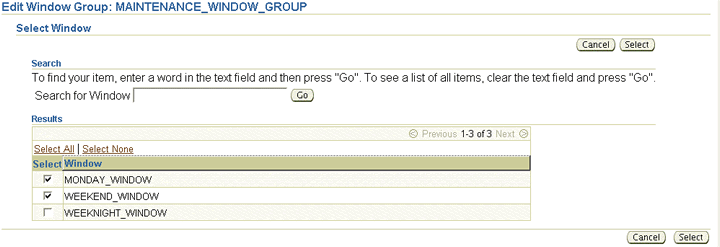
10G Grid Control R2 displays a listing of Windows that can be added to the Maintenance_Window_Group. Notice that I have deactivated the Weeknight Window and selected the Monday_Window. I can complete the process by clicking on the 'Select' navigation button.
If I want, I can add the remaining days by creating a specific Window for each day. Or I can choose to deactivate Monday from the Weeknight Window. In that case, all other weekdays will use the Weeknight Window's configuration. I'll have to remember to add the Weeknight Window back to the Maintenance_Window_Group if I choose to use that configuration.
Summary
It is important to note that this was just a quick example of how to configure
Maintenance Windows. The intent of this blog was to show you that you have a
myriad of configuration options available to you. You can choose to use the
default Maintenance Windows and Maintenance Windows Group or you can create
a totally unique set of Maintenance Windows for your database. As I stated,
the options are endless. In my next blog, I'll show you how to configure the
default options for the gathering statistics jobs.